Roku HDCP Error Detected? Fix a Purple Screen Without a Factory Reset
The Roku interface appears, but playback stops with an HDCP error—or the picture turns purple alongside that error. Start with the HDMI connection between the player and the television, including any soundbar, receiver, or switch between them.
This guide addresses an explicit HDCP error and its associated display symptom on a Roku streaming player. A purple tint by itself, with no error message, is not enough to identify the cause.
Quick Answer
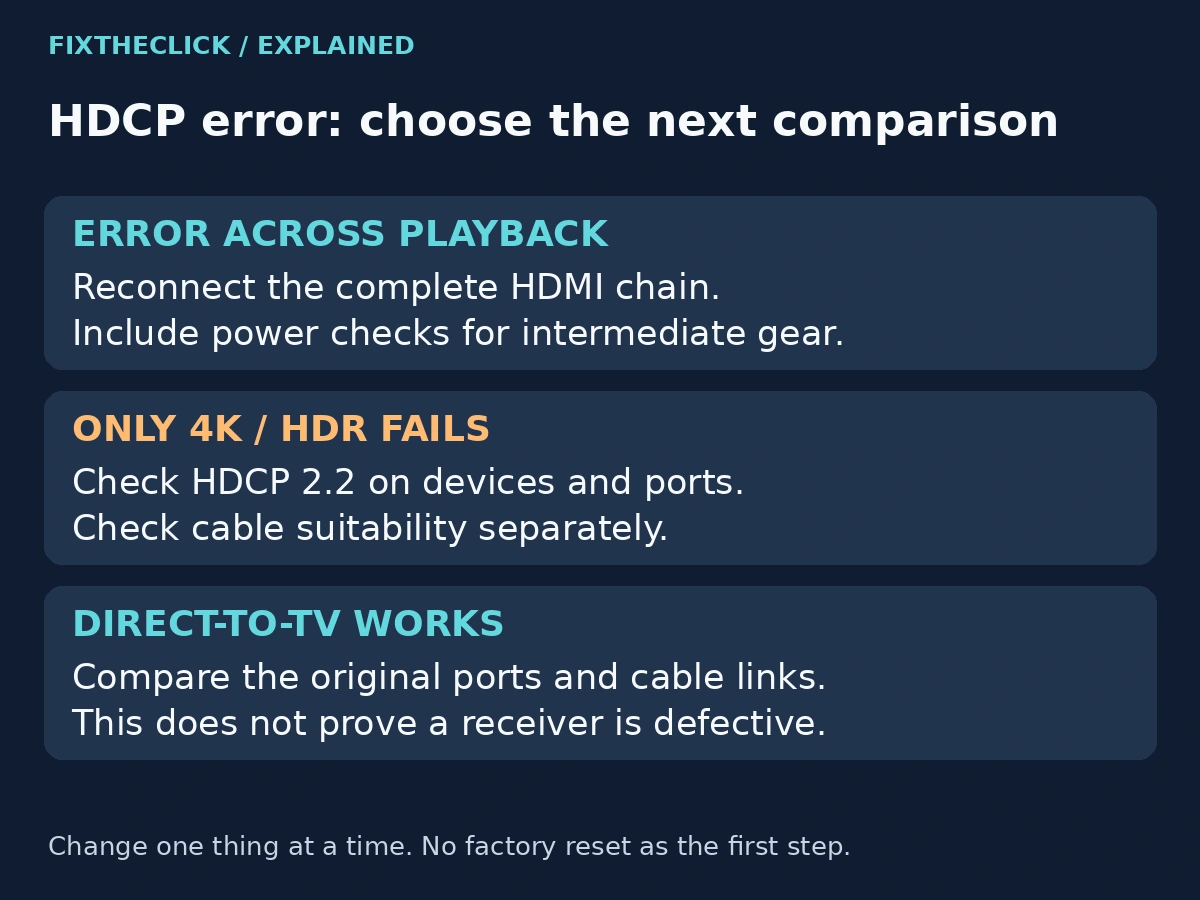
For “HDCP Error Detected,” reconnect the complete HDMI chain using Roku’s power-and-cable sequence, then retest. Include intermediate equipment, not just the player. If the error remains, compare a direct-to-TV connection and another suitable input or cable. If only 4K/HDR fails, check HDCP 2.2 support on every relevant device and HDMI port before changing more settings.
1. Identify the Error and the Actual HDMI Chain
Write down the error wording before unplugging anything. Note whether it appears when opening any title, only in one app, or only when selecting 4K/HDR playback. These are useful comparisons; they do not prove which device is at fault.
HDCP is content protection used over HDMI connections. The useful question here is whether the player and the equipment carrying its picture can establish the required protected connection. You do not need to change your Wi-Fi password to inspect that path.
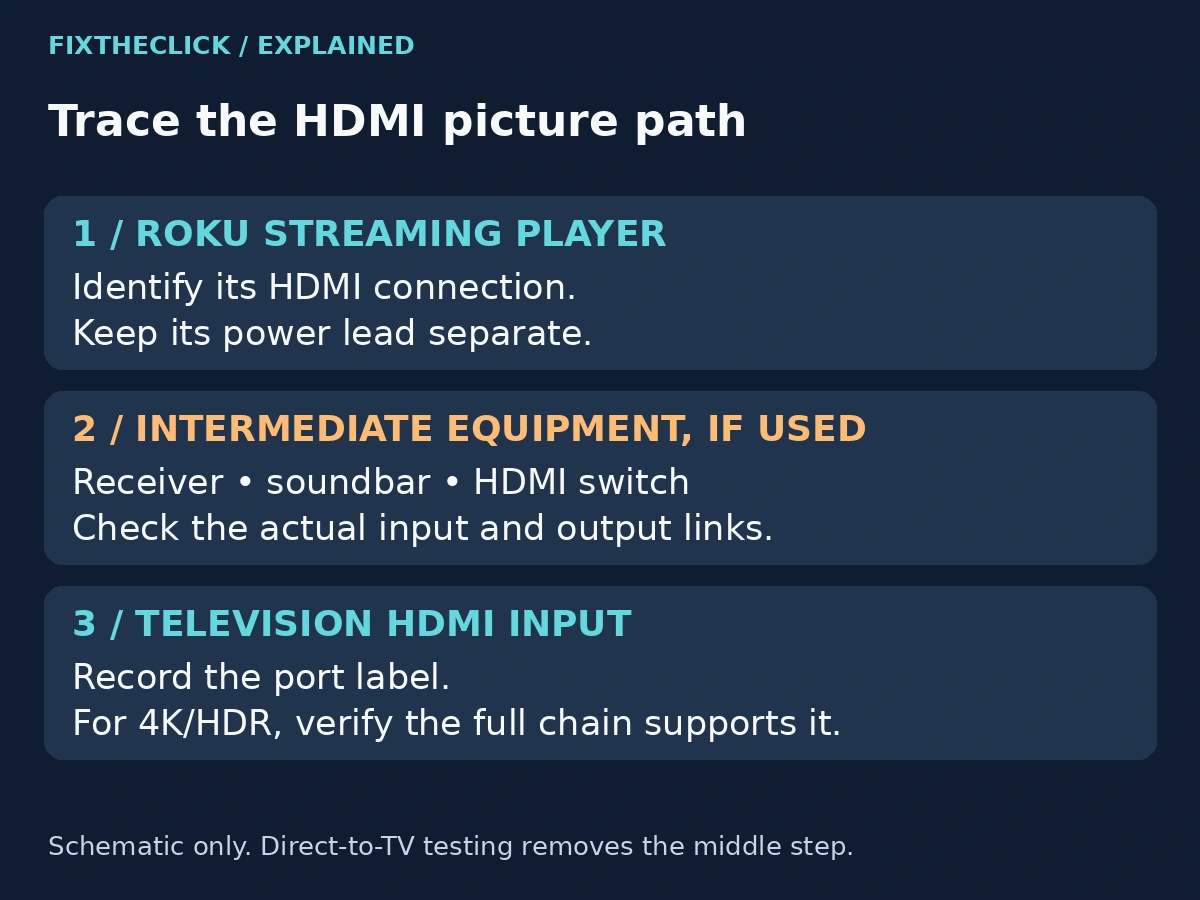
Trace the picture connection physically. Is Roku connected directly to the TV? Or does the cable enter an AV receiver, soundbar, or HDMI switch first? Write down the input label at each step. A receiver sitting near the television is not necessarily carrying the Roku picture; follow the cable rather than assuming.
| What happens | Next comparison |
|---|---|
| HDCP error during playback generally | Reconnect the complete HDMI chain |
| Direct-to-TV works but the longer chain fails | Check intermediate ports, cables, and equipment support |
| HD or lower-resolution playback works; 4K/HDR fails | Verify the full chain’s 4K/HDR and HDCP 2.2 capabilities |
| Purple picture without an HDCP message | Record the symptom and use model-specific display guidance |
2. Reconnect in Roku’s Recommended Order
Roku’s HDCP troubleshooting guide gives a reconnection sequence. Keep the intermediate equipment in the process if it carries the HDMI signal.
First, disconnect the HDMI connections at both ends of the affected links. Handle connectors gently. If your Streaming Stick plugs directly into a socket, disconnect that plug rather than looking for a separate cable the model does not use.
Next, turn off and unplug the television and any intermediate receiver, soundbar, or switch. Then disconnect the Roku player’s power. Do not leave an intermediate device powered because it still appears to be working normally.
Reconnect HDMI securely, then restore power to the devices and test playback. Make sure you restore the intended TV input and, where relevant, the receiver’s input. A changed input can create a new “no picture” problem that distracts from the original error.
Do not force connectors into awkwardly positioned sockets. If a cable or port is visibly damaged, stop that test and seek model-specific support. The aim is a clean reconnection, not repeated plugging while applying pressure to a fragile connector.
3. Test a Direct Connection to the TV
If the error remains, temporarily simplify the picture path. Roku recommends connecting the player directly to the television to check whether intermediate equipment is involved. Use a suitable TV input; for 4K/HDR testing, verify that input’s documented support.
Power down and disconnect the relevant equipment before changing the arrangement. Keep track of the original connections, then retest the same title with the shorter path. That comparison is more useful than switching the cable, app, output format, and TV input all at once.
If direct-to-TV works, that does not automatically mean the receiver is broken. It narrows the problem to the longer arrangement: an input choice, a cable link, a setting, or an equipment capability may need checking.
The temporary arrangement may also change where sound comes from. Note that separately. A successful picture test does not require you to redesign the final audio setup immediately. Restore the original arrangement afterward if needed, and use the equipment manufacturer’s instructions before choosing a permanent configuration.
4. Compare Another Input or Suitable Cable
Roku also recommends testing another HDMI input or cable. Use a cable appropriate for the requested video format and the devices involved. When a separate cable is used, check both ends and change only that link before repeating the test.
If another input works, record the two port labels. Do not conclude that every other socket is defective. The inputs may have different documented capabilities, especially on an older TV or receiver. Their physical resemblance does not guarantee identical support.
For a Streaming Stick, distinguish its direct HDMI plug from any optional extension or switch in the arrangement. Do not apply a separate-cable replacement step to hardware that has no such cable. If you lack an alternative compatible setup, record that limitation instead of buying equipment just to complete a checklist.
5. If Only 4K or HDR Playback Fails
Check the player, television input, and every intermediate device and port against Roku’s HDCP 2.2 guidance. The relevant HDMI chain must support HDCP 2.2 for the 4K/HDR playback described there. A television advertised as 4K does not establish the capabilities of every port or connected receiver.
Look up the exact model’s manual and the input actually in use. If its documentation does not identify support clearly, ask the manufacturer. Do not infer compatibility from an unverified online description of a similar model.
Cable suitability is a separate check from device support. An appropriate cable cannot add a missing HDCP capability to a receiver. Likewise, supported devices still need suitable connections between them. Avoid treating “HDCP 2.2 cable” as a universal certification label or a reason to buy a particular product.
Roku points to Settings → Display type for changing output. Where available, a supported lower-resolution choice can serve as a temporary comparison. Record the original selection before changing it, test the same content, and restore it if the change does not help. This is a compatibility test, not a way to remove or bypass content protection.
6. Know When to Stop Reconnecting
After a controlled reconnection and a useful comparison, repeating the same steps indefinitely adds little information. Gather the player, TV, and receiver or soundbar models; HDMI input labels; cable arrangement; selected display type; and the exact stage where the message appears.
Tell support whether the direct connection worked and whether the problem followed 4K/HDR specifically. If only one app or title fails, include that detail rather than claiming the whole HDMI system is defective. Manufacturer support can use those observations to choose the next model-specific check.
A factory reset is not the default next step for this error. First resolve connection and capability questions. Erasing a working account setup does not establish whether the HDMI input supports the required playback format.
Frequently Asked Questions
Is every purple screen an HDCP error?
No. Use the displayed message and playback context. A purple picture without an HDCP warning needs further display troubleshooting rather than an assumed diagnosis.
Does direct-to-TV success mean I need a new receiver?
No. It identifies a difference between two arrangements. Check the receiver’s selected ports, connected cables, and documented support before discussing replacement.
Will faster Wi-Fi fix an HDCP error?
Network performance and HDMI content-protection negotiation are different checks. Start with the documented HDMI procedure for an explicit HDCP error, rather than changing unrelated network settings.
Should I lower the resolution permanently?
Not automatically. A supported lower setting can help compare behavior. Use the result to investigate the original format’s requirements; keep the trade-off in picture quality clear if you choose to leave it lower.