Roku TV Antenna Channels Missing? Check the Input and Rescan
The Roku TV guide contains plenty of streaming channels, but the local station you expected is missing. Or an antenna channel that worked before has disappeared. Start by checking which source the TV is showing—not by reinstalling streaming apps.
Quick Answer
Confirm that the antenna is connected to the Roku TV's antenna input and that you are setting up the TV tuner, not only browsing streaming channels. Check the accessible cable connection, review the channel list, then run the scan offered by your model. Read any list-replacement warning before proceeding. This guide is for Roku TVs with a built-in tuner, not Roku Sticks or external players.
1. Separate antenna reception from streaming channels
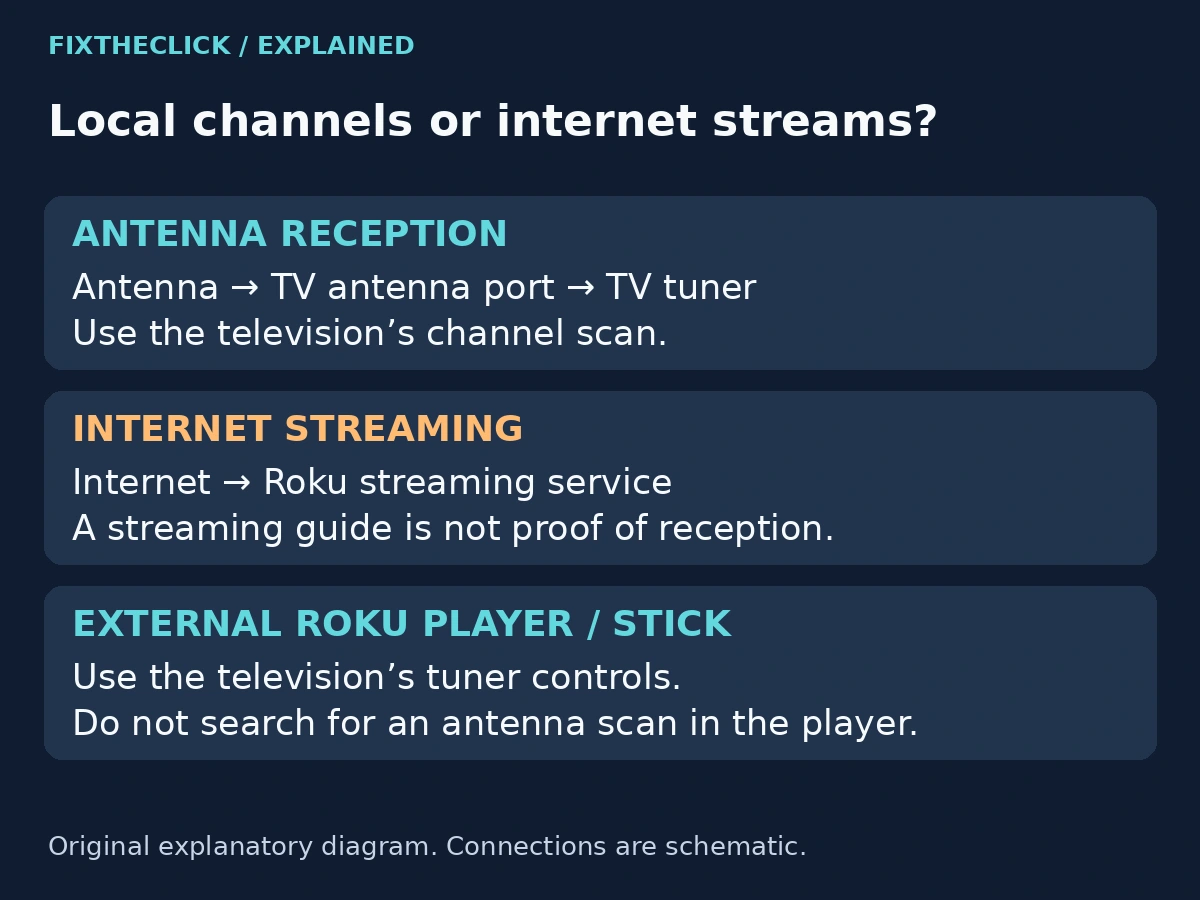
An antenna feed and an internet stream reach your television through different paths. Seeing free streaming channels in a guide does not demonstrate that the TV has scanned or received your local broadcasts.
TCL's Live TV guide explanation notes that antenna and streaming channels can appear together. Hiding the streaming entries does not restore missing antenna stations. The antenna connection and channel search still need to be in place.
| What you have | Which setup to check |
|---|---|
| Antenna coax connected directly to a Roku TV | The TV's Live TV or antenna tuner setup |
| Only a list of free internet channels | Whether antenna setup was completed separately |
| Cable or satellite box connected by HDMI | The box and its selected HDMI input |
| Roku Stick or player attached to another TV | That television's own tuner and instructions |
Follow the cable rather than the name of the show. A local station available through a paid streaming app is not necessarily being received through the antenna. Conversely, a channel-scan result belongs to the tuner, not to the list of apps on Home.
2. Check the connection and selected input
Turn the TV off before reseating an accessible coax connection. Check that the antenna lead is attached to the television's ANT/CABLE or corresponding antenna connector, using the label and manual for your model. Look for an obviously loose connection or damaged connector; do not force it or take the television apart.
Then turn the TV on and select its Live TV or antenna source. TCL's current troubleshooting guide distinguishes that source from the HDMI input used by a cable box. Its Roku TV scan path is Settings → TV inputs → Live TV → Scan for channels, with model and software variations.
If the expected input is missing, check the TV inputs setup for your model. Do not start scanning inside an external Roku player's settings. The player is not the receiving tuner in this setup.
Keep the first check physical and specific: which cable, which TV connector, and which source? Restarting a router cannot correct an antenna lead connected to the wrong place. Neither can installing another streaming app.
3. Check the list before rebuilding it
If some channels work, note their numbers and the missing station before rescanning. Check whether you are viewing a shortened or customized lineup rather than the full list.
TCL documents a channel-management route on supported Roku TVs: while in the guide, highlight a channel, press Star (*), then use Manage channels → Manage channel lineup. Inspect the available show/hide choices. Follow the wording on your screen; do not assume every software version uses the same checkmark behavior.
If a station is listed but hidden, restoring its visibility is a different task from receiving a signal that the scan cannot find. If it is not listed at all, continue with the appropriate scan. Keep a note of your favorites and any deliberate hidden-channel choices before making broader changes.
Do not keep toggling the option that hides internet streaming channels and expect that to tune a local broadcast. Guide organization changes what you see in the list; it does not improve the antenna signal.
4. Rescan using the choice that matches your goal
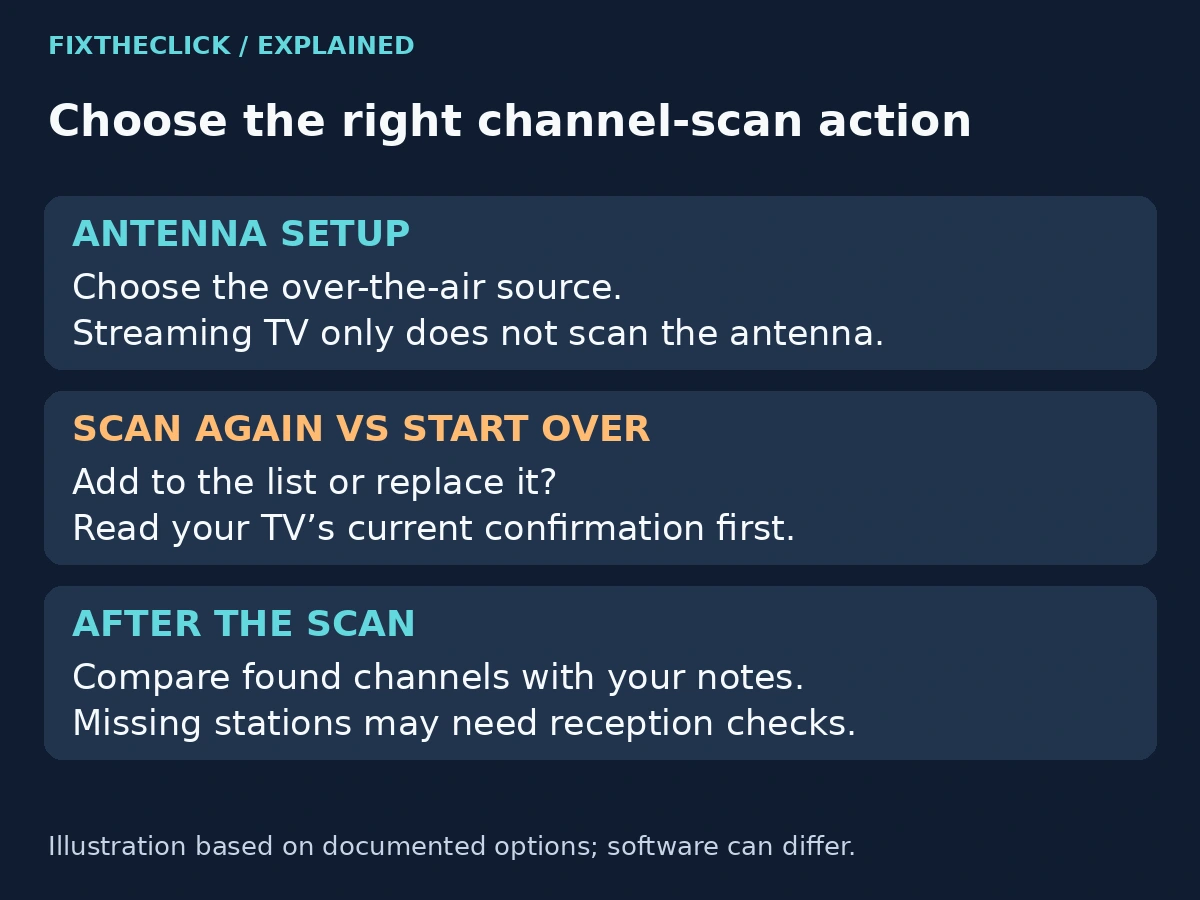
The Roku TV U.S. v14.0 manual, printed pages 33–36, documents highlighting the Live TV input and pressing Star to access channel scanning. In that setup, Antenna includes over-the-air channels; Streaming TV only does not scan them.
The same manual distinguishes Scan again, which adds channels to the existing list, from Start over, which replaces the list. Read your television's current confirmation screen before choosing. Do not assume favorites and hidden entries will always be preserved—or always cleared—across every scan option and software version.
Let the selected scan finish, then inspect its results and try a found local channel. Compare that result with your notes. A completed scan with no channels is useful diagnostic information; it does not prove that the TV is broken.
Avoid repeatedly choosing the more disruptive option simply because the first result was disappointing. If the antenna position and connection have not changed, another immediate scan may leave you with the same unanswered reception question.
5. If the missing channels point to reception
If the source and scan are correct, consider whether the problem affects every local channel or only one. Record whether it began after the antenna moved, a cable changed, or you relocated the TV. Those observations help separate setup changes from a station-specific problem.
Roku's antenna troubleshooting guidance ties reception to location and antenna placement. For an indoor antenna that is safely accessible, follow its manufacturer's placement instructions and compare a different suitable position, then rescan. Do not climb onto a roof, adjust outdoor wiring, or move a mounted TV for this guide.
If other stations remain available but one disappears, check that broadcaster's official information before treating an old outage report as current. If none are found, give the TV manufacturer the model, selected source, connection arrangement, and scan result. A known working antenna or connection comparison can help support narrow the issue, but a single test is not a definitive hardware diagnosis.
You do not need to purchase equipment before establishing what is missing. Likewise, a factory reset should not replace input, connection, list, and scan checks.
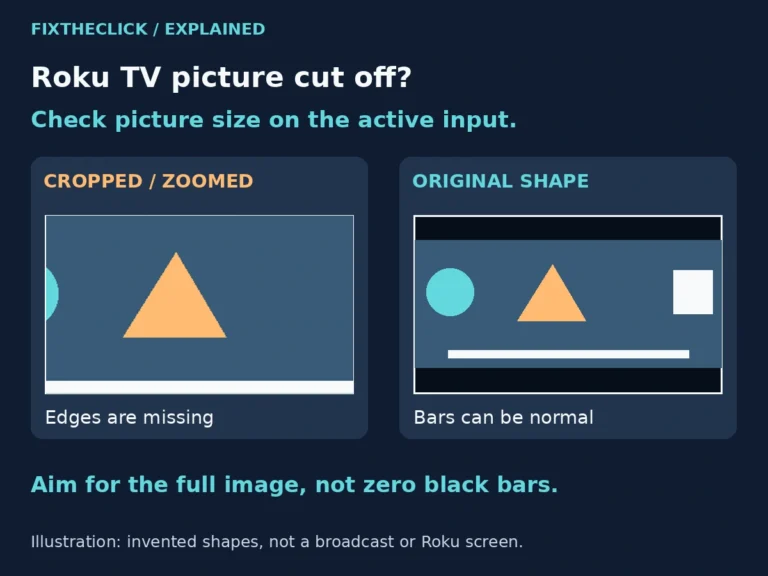
If a channel now plays but the scoreboard or subtitles extend beyond the edge, use our Roku TV cropped-picture guide. A picture-size change does not help a channel the tuner has not found.
Frequently Asked Questions
Why do streaming channels work while local stations are missing?
They use different delivery paths. Internet playback does not confirm that the television is receiving the antenna signal. Check the tuner setup and scan results separately.
Should I choose Start over every time?
No. First read what the TV says the option will change. Replacing a list is not the same as adding to it, and it can create extra work restoring your preferred lineup.
Can I scan antenna channels on a Roku Ultra or Stick?
These instructions are for a Roku TV's tuner. For a separate Roku player, antenna reception is handled by the television or another appropriate receiver, using that device's own controls.
Do I need to change Wi-Fi settings for missing antenna channels?
Do not begin there. First establish whether the missing content is an over-the-air station or an internet stream. Setup and guide features vary, so consult your exact TV's instructions rather than assuming one internet requirement applies to every model.