Roku TV Picture Zoomed In? Fix Cropped Edges and Missing Subtitles
The game is playing, but part of the scoreboard is outside the screen. Or you can see the tops of the subtitles while the rest disappear below the edge. Before resetting the television, check whether the picture is being enlarged on the source you are actually watching.
Quick Answer
On a Roku TV, start with the affected input and its Picture size control while the content is playing. Try Auto where available, then compare the edges of the same scene. Black bars can preserve the original picture shape; removing them with zoom may cut off content. This guide covers televisions with Roku built in. A separate Roku Stick or player does not turn another brand's TV settings into Roku TV settings.
1. Identify the TV and the source that looks wrong
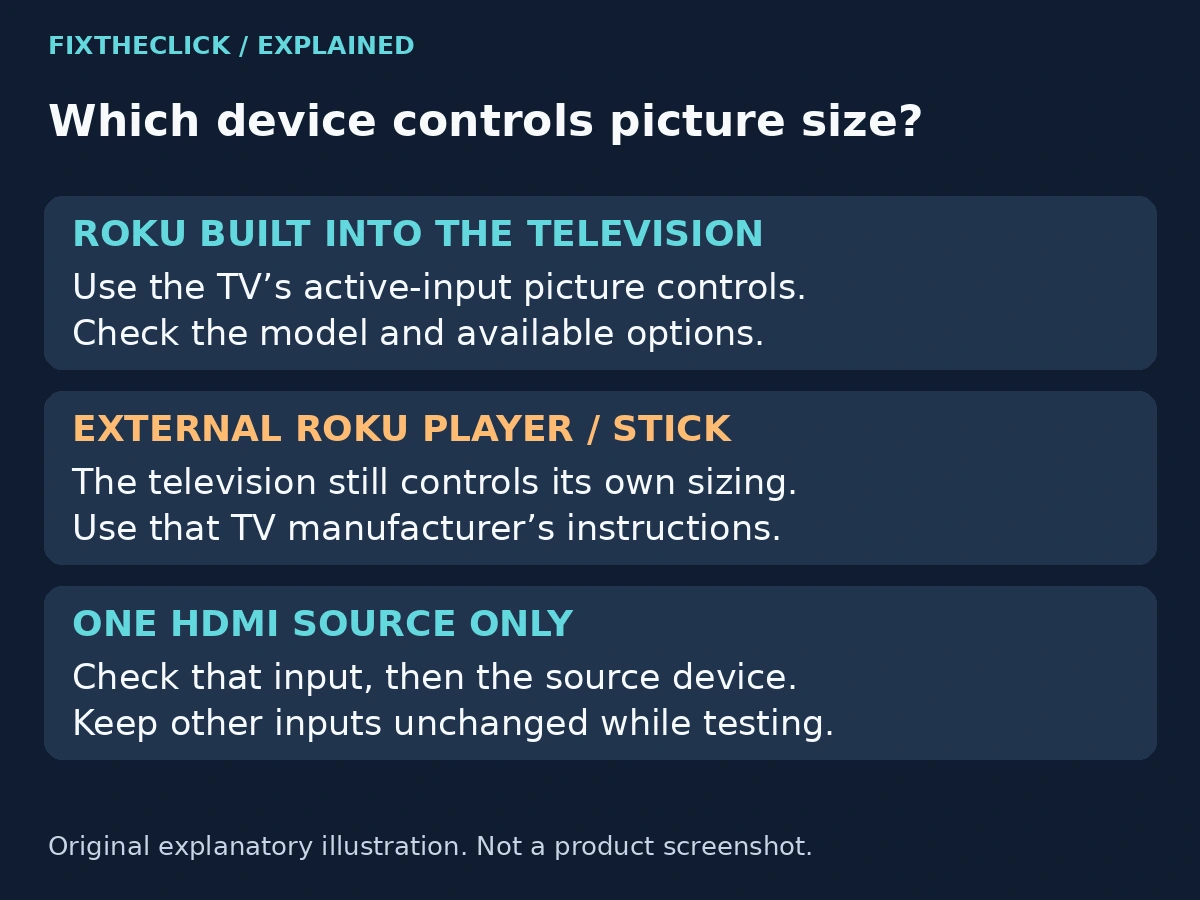
First work out which device is drawing the picture. Are you using an app installed on a Roku TV, the TV's antenna tuner, or a box connected to HDMI? If the Roku Home screen comes from a separate player plugged into a different television, use that television's own picture-size instructions.
Compare another program on the same source, then a different input or built-in app if available. Keep the comparison simple: you are checking whether the missing edges follow one title, one input, or everything you watch.
| What you notice | Start here |
|---|---|
| Scoreboard or subtitles disappear beyond an edge | The active source's picture-size setting |
| Complete picture with black bars | The program's original aspect ratio |
| Only one HDMI box looks enlarged | That input, then the box's video-output settings |
| Only one title or app looks wrong | Another title in the same app, then the app's support |
Make a note of the input before changing it. Fixing HDMI 1 is not evidence that the antenna input has the same setting. Likewise, a movie looking correct does not establish that a cable box is sending the picture in the same format.
2. Open Picture size while the problem is visible
On supported TCL Roku TV interfaces, TCL's picture-setting instructions start with playback: press Star (*), open Advanced picture settings, and look for Picture size. On the Roku TV v14.0 layout, the picture controls include Customize picture → Picture size instead. Use the labels on your model; these are documented interface examples, not one universal click path.
Note the current value before changing it. If Auto is offered, try it and watch the same edges again. TCL documents options including Normal, Direct, Stretch, and Zoom, but the choices available to you can differ. Read the on-screen explanation rather than assuming that the option that fills the most space is the correct one.
The Roku TV U.S. v14.0 user guide, printed page 75, distinguishes showing the original format from zooming or stretching it. It is a reference for that interface version, not a promise that every current TV has the same menu.
Change only picture size for this test. Do not adjust brightness, color, sharpness, and several other controls at the same time. Those extra changes make it harder to see which action restored the missing edge.
If the option is absent inside an app, stop looking for a secret menu. Confirm your television model and use the manufacturer's instructions for that source. Some playback screens do not expose the same controls as HDMI or antenna viewing.
3. Tell cropping apart from normal black bars
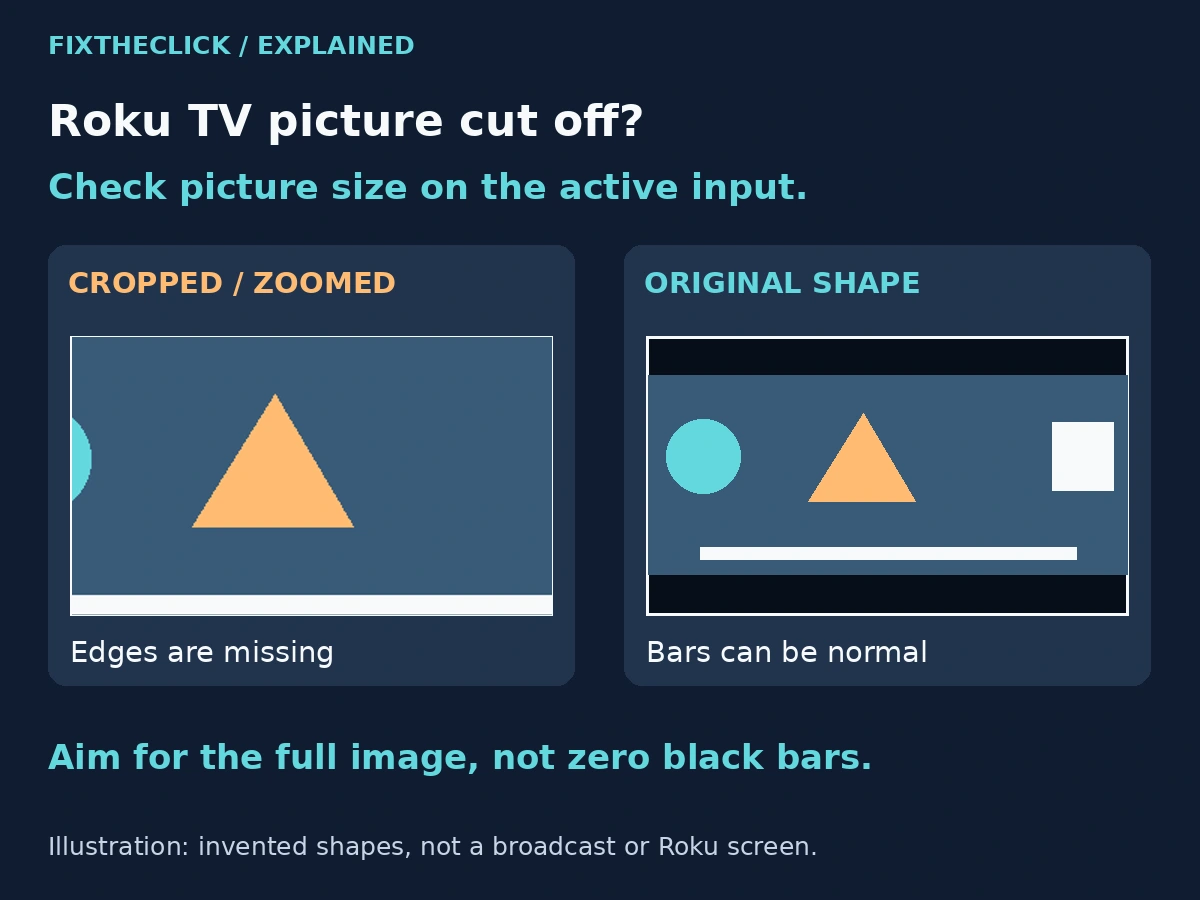
A complete picture does not always fill the panel. As TCL explains in its aspect-ratio guidance, the shape of the original program can leave bars above and below, or at the sides. Bars alone are not evidence that the TV is malfunctioning.
Look for actual missing information: a cut-off score, clipped text, or a person partly outside the frame when the same content should show them. Zoom enlarges the image to fill more of the screen and can sacrifice its outer edges. Stretch changes proportions, so a round object may no longer look round.
The useful goal is the complete picture with sensible proportions, not a screen with no empty space. When the edges return but bars remain, you may already have the appropriate result. Do not keep zooming just to remove those bars.
For a fair comparison, use the same scene or an on-screen graphic that stays in one position. Comparing different camera shots can make a normal change in framing look like a settings problem. Restore the previous value if a change makes the picture worse.
4. If only one input or app is affected
TCL documents that many picture adjustments are remembered per input. Keep the repair limited to the source with the problem rather than copying its settings to every input. Another household member may have deliberately set up a different source for a different kind of viewing.
For an HDMI cable box, game console, or disc player, inspect its own documented video-output or display-area controls after checking the TV input. TCL specifically advises checking the external device's output format. Do not guess a menu name for a device you have not identified.
If only one streaming app is affected, compare a second title before changing the entire television. A title-specific framing or subtitle problem should be described to the service with the title and scene involved. If every title in that app is affected but other sources are correct, report that narrower pattern.
Do not remove and reinstall every app for an input-specific picture-size problem. That adds account sign-in work without establishing why the video is cropped. A factory reset is also a poor first step when a reversible display setting is available.
5. When the subtitles are the only thing missing
Check whether the picture itself is cropped as well. If the bottom of the scene and the bottom of the text both disappear, picture size is the sensible first check. If the picture is complete but one app's subtitle text is still clipped, use that app's official subtitle-display guidance rather than assuming every app uses Roku's controls.
This is different from captions appearing when you wanted them off. For that symptom, use Roku subtitles that keep coming back. Disabling text would hide the symptom, not restore the missing portion for someone who needs to read it.
If you still need support, note the TV model, software version, input or app, selected picture-size option, and whether the Home screen also looks cropped. Explain what changed when you compared another source. You do not need to diagnose a panel failure or a new OS bug to give support a useful report.
Frequently Asked Questions
Should every movie fill the whole screen?
No. Black bars may be the correct way to show the complete original image. Judge the result by visible edges and proportions, not only by whether every part of the screen contains video.
Will changing one HDMI input fix all my apps?
Do not assume so. Input-specific controls are why checking the source first matters. Recheck the original problem after each change rather than applying one source's settings everywhere.
Does this work on a Roku Streaming Stick?
The instructions here are for the television's built-in Roku interface. With a separate player, use the actual TV manufacturer's picture-size instructions and identify which remote controls those settings.